在 Elementory OS 上安装 Postman
安装 snap
sudo apt install snapd安装 postman
sudo snap install postman安装 snapd-xdg-open
sudo apt install snapd snapd-xdg-open安装 snap
sudo apt install snapd安装 postman
sudo snap install postman安装 snapd-xdg-open
sudo apt install snapd snapd-xdg-open一直用着 Microsoft 的 AppCenter.ms 服务都不错,功能强大,但是最近总是抽风,没办法,只能自己部署私有 Code Push Server了,如果直接搜索 Code Push Server,一般得到的结果都是 https://github.com/lisong/code-push-server 这个,我安装过,不过并没有实现去测试,因为发现它并没有完美的实现 Code Push 的逻辑,在各种坛里面找了好几天之后,终于发现了 http://Electrode.io,Walmart Labs 的东西总是这么难发现, Hapijs 也是。
什么是 Electrode ,大家可以直接上官方去了解,我们只使用 Electrode OTA Server 功能,我本身就是一个长期的 HapiJS 用户,所以一看到这货,还是很亲切的。
nvm 是一个很不错的 Node 版本管理工具,使用下面任何一个命令安装即可,如果在安装过程中有任何疑问,请直接自行解决 https://github.com/nvm-sh/nvm。
curl -o- https://raw.githubusercontent.com/nvm-sh/nvm/v0.34.0/install.sh | bash或者
wget -qO- https://raw.githubusercontent.com/nvm-sh/nvm/v0.34.0/install.sh | bashnvm install node这个不是必须的,但是如果只是在本地测试的话,建议安装,Electrode OTA Server 默认使用的是 Apache Cassandra 数据库,有了 Docker 之后,数据库的问题更好解决,否则需要在本机安装个 Cassandra 也是很烦人的一件事情,当然,如果不使用 Cassandra 的话,也可以直接使用 MariaDB 数据,这个下面都会说,因为我的机器配置不高,所以,最终还是选择了 MariaDB 数据库。
如果你已经安装了 Docker 了,那么直接跳过这一步,如果感觉没有安装过,那么继续,使用下面的命令删除所有过往的 docker 版本。
sudo yum remove docker \
                  docker-client \
                  docker-client-latest \
                  docker-common \
                  docker-latest \
                  docker-latest-logrotate \
                  docker-logrotate \
                  docker-engine
安装安装 yum-utils 以提供 yum-config-manager 工具,同时,device-mapper-persistent-data 以及 lvm2 是 devicemapper 所必须的库:
sudo yum install -y yum-utils \
  device-mapper-persistent-data \
  lvm2
使用下面的命令设置 stable 版本 docker
sudo yum-config-manager \
    --add-repo \
    https://download.docker.com/linux/centos/docker-ce.repo
使用下面命令安装 docker
sudo yum install docker-ce docker-ce-cli containerd.io基于 docker 之后,我们就直接安装 MariaDB 以及 Cassandra 数据库了。
Cassandradocker pull cassandra或者有一个增强版本的选择:
docker pull datastax/dse-server两个任选一个即可
docker run --name parcmg-cassandra -p 9042:9042 -d cassandra
docker container start parcmg-cassandraMariaDBdocker pull mariadb
docker run --name parcmg-mariadb -p 3306:3306 -d mariadb
docker container start parcmg-mariadb现在我们已经有了可用的数据库服务了,接下来,部署 Electrode OTA Server
这一步就不多说了,直接在 Github 后台创建一个 App,拿到 ClientId 以及 ClientSecret 两个值,在下面会用。
Electrode OTA Serverparcmg-ota-server 项目mkdir parcmg-ota-server
yarn init
yarn add electrode-ota-server electrode-ota-server-dao-mariadbconfig/default.json 配置文件在项目目录下面创建一个名为 config 的目录,在目录中,添加一个 default.json 的配置文件(这个是我最喜欢 HapiJS 的一点,所有东西都是配置优先。
{
  "connection": {
    "host": "localhost",
    "port": 9001,
    "compression": false
  },
  "server": {
    "app": {
      "electrode": true
    }
  },
  "plugins": {
    "electrode-ota-server-dao-plugin": {
      "module": "electrode-ota-server-dao-mariadb",
      "priority": 4,
      "options": {
        "keyspace": "parcmg_ota",
        "contactPoints": ["localhost"],
        "clusterConfig": {
          "canRetry": true,
          "defaultSelector": "ORDER",
          "removeNodeErrorCount": 5,
          "restoreNodeTimeout": 0
        },
        "poolConfigs": [
          {
            "host": "<%Database Host%>",
            "port": 3306,
            "dialect": "mysql",
            "database": "<%Database Name%>",
            "user": "<%Database Username%>",
            "password": "<%Database Password%>"
          }
        ]
      }
    },
    "electrode-ota-server-fileservice-upload": {
      "options": {
        "downloadUrl": "https://<%ota.domain.com%>/storagev2/"
      }
    },
    "electrode-ota-server-auth": {
      "options": {
        "strategy": {
          "github-oauth": {
            "options": {
              "password": "<%RandomKey%>",
              "isSecure": true,
              "location": "https://<%ota.domain.com%>",
              "clientId": "<%GithubClientId%>",
              "clientSecret": "<%GithubClientSecret%>"
            }
          },
          "session": {
            "options": {
              "password": "LYG2AqpUK3L4rKQERbuyJWxCqMYh5nlF",
              "isSecure": true
            }
          }
        }
      }
    }
  }
}
然后给 package.json 添加下面两个 script:
{
  "scripts": {
    "start": "NODE_ENV=production node node_modules/electrode-ota-server",
    "development": "NODE_ENV=development node node_modules/electrode-ota-server"
  }
}
此时,可以直接使用 yarn development 或者 yarn start 运行了。
这里需要注意一点,如果使用 MariaDB,需要自己先建立好数据库以及数据表, schema 保存在 https://github.com/electrode-io/electrode-ota-server/tree/master/electrode-ota-mariadb-schema/electrode-ota-db/tables 这里面,一个一个创建即可。pm2pm2 工具npm install -g pm2ecosystem.config.js 文件内容如下:
module.exports = {
  apps: [
    {
      name: "parcmg-ota",
      script: "node_modules/electrode-ota-server/index.js",
      env: {
        NODE_ENV: "production"
      }
    }
  ]
};
在 package.json 中添加 serve 命令:
{
  "scripts": {
    "serve": "yarn install && pm2 startOrRestart ecosystem.config.js --env production",
    "start": "NODE_ENV=production node node_modules/electrode-ota-server",
    "development": "NODE_ENV=development node node_modules/electrode-ota-server"
  }
}yarn serve或者
pm2 start ecosystem.config.js --env productionvi /etc/yum.repos.d/nginx.repo内容如下:
[nginx]
name=nginx repo
baseurl=http://nginx.org/packages/mainline/centos/7/$basearch/
gpgcheck=0
enabled=1
然后执行下面命令安装:
yum install -y在 /etc/nginx/conf.d 目录下新建一个虚拟主机配置文件:
vi /etc/nginx/conf.d/ota.domain.com.conf内容如下:
upstream parcmg_ota {
    server 127.0.0.1:9001;
    keepalive 64;
}

server {
  listen               80;
  listen               [::]:80;
  server_name          ota.parcmg.com;
  return 301 https://$host$request_uri;
}

server {

  listen 443 ssl;

  ssl_certificate   cert.d/YOUR_PEM.com.pem;
  ssl_certificate_key  cert.d/YOUR_KEY.com.key;
  ssl_session_timeout 5m;
  ssl_ciphers ECDHE-RSA-AES128-GCM-SHA256:ECDHE:ECDH:AES:HIGH:!NULL:!aNULL:!MD5:!ADH:!RC4;
  ssl_protocols TLSv1 TLSv1.1 TLSv1.2;
  ssl_prefer_server_ciphers on;

  server_name ota.parcmg.com;

  charset utf-8;

  # Global restrictions configuration file.
  # Designed to be included in any server {} block.
  location = /favicon.ico {
    log_not_found off;
    access_log off;
  }

  location = /robots.txt {
    allow all;
    log_not_found off;
    access_log off;
  }

  # Deny all attempts to access hidden files such as .htaccess, .htpasswd, .DS_Store (Mac).
  # Keep logging the requests to parse later (or to pass to firewall utilities such as fail2ban)
  location ~ /\. {
    deny all;
  }

  location / {
    if ($request_method = 'OPTIONS') {
      add_header 'Access-Control-Allow-Origin' '*';
      add_header 'Access-Control-Allow-Methods' 'GET, POST, OPTIONS';
      #
      # Custom headers and headers various browsers *should* be OK with but aren't
      #
      add_header 'Access-Control-Allow-Headers' 'DNT,User-Agent,X-Requested-With,If-Modified-Since,Cache-Control,Content-Type,Range';
      #
      # Tell client that this pre-flight info is valid for 20 days
      #
      add_header 'Access-Control-Max-Age' 1728000;
      add_header 'Content-Type' 'text/plain; charset=utf-8';
      add_header 'Content-Length' 0;
      return 204;
    }
    if ($request_method = 'POST') {
      add_header 'Access-Control-Allow-Origin' '*';
      add_header 'Access-Control-Allow-Methods' 'GET, POST, OPTIONS';
      add_header 'Access-Control-Allow-Headers' 'DNT,User-Agent,X-Requested-With,If-Modified-Since,Cache-Control,Content-Type,Range';
      add_header 'Access-Control-Expose-Headers' 'Content-Length,Content-Range';
    }
    if ($request_method = 'GET') {
      add_header 'Access-Control-Allow-Origin' '*';
      add_header 'Access-Control-Allow-Methods' 'GET, POST, OPTIONS';
      add_header 'Access-Control-Allow-Headers' 'DNT,User-Agent,X-Requested-With,If-Modified-Since,Cache-Control,Content-Type,Range';
      add_header 'Access-Control-Expose-Headers' 'Content-Length,Content-Range';
    }

      proxy_set_header X-Real-IP $remote_addr;
      proxy_set_header X-Forwarded-For $proxy_add_x_forwarded_for;
      proxy_set_header Host $http_host;
      proxy_set_header X-Nginx-Proxy true;
      proxy_set_header Connection "";
      proxy_pass http://parcmg_ota;
  }
}
启动 nginx
systemctl start nginx
systemctl enable nginx
如果没有 SSL 证书,可以上Aliyun或者QCloud上面去申请免费的,当然,也可以直接使用http协议。
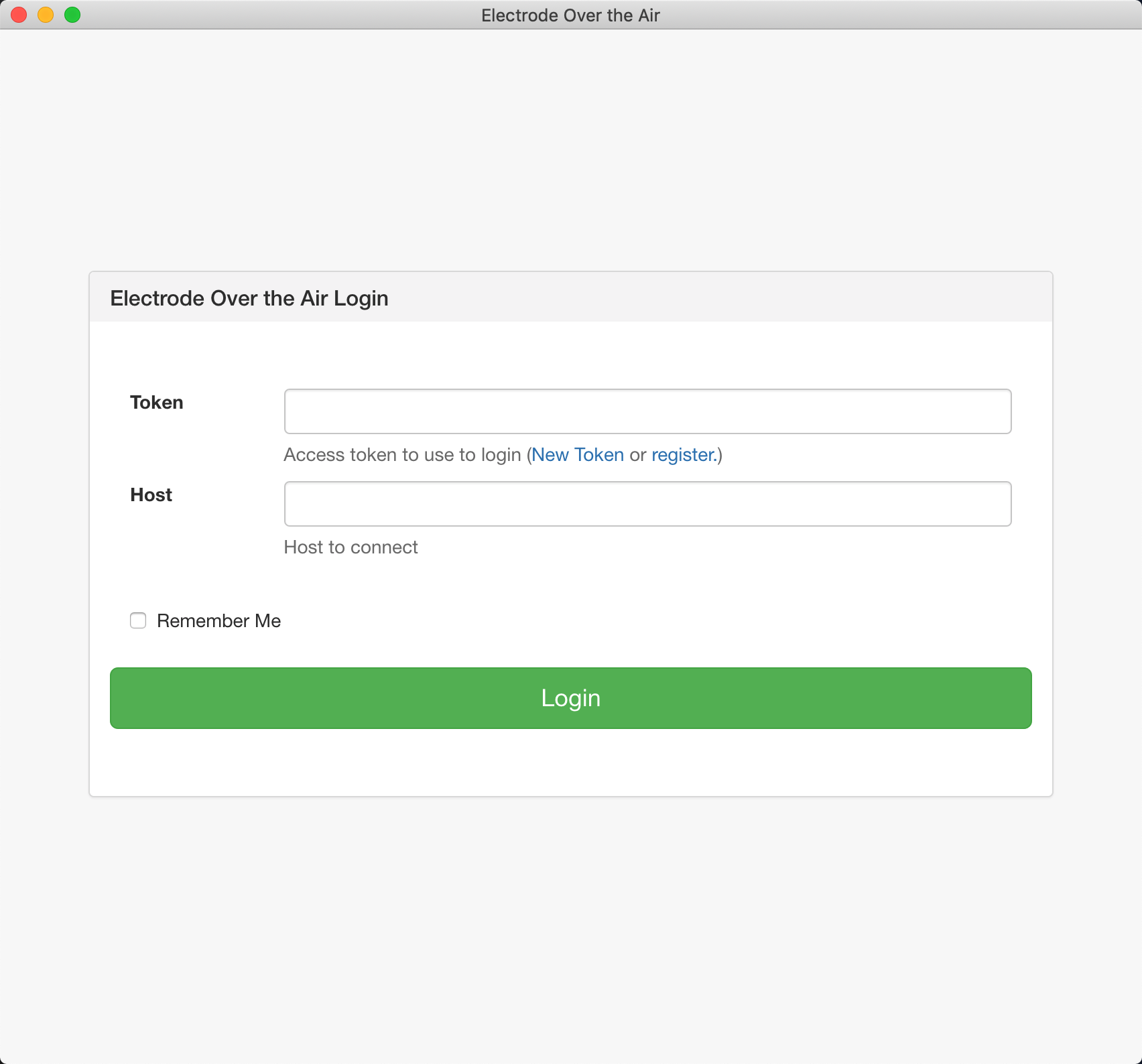
牛逼的Walmart Labs 还提供了一个可视化的管理工具,咱现在就先用上,直接去 https://github.com/electrode-io/electrode-ota-desktop/releases 下载最新版本即可,打开之后,会看到登录界面。暂时离开一会儿,回到 Terminal 中去。
OTA Servercode-push 会话如果你以前已经使用了 Appcenter.ms 的服务,那么现在可以退出登录了。
code-push logout重新在私有 OTA 服务中注册帐号:
code-push register https://ota.parcmg.com此时会跳转到 https://ota.parcmg.com 的授权页面,在页面最下方点击 Github 完成 OAuth 授权之后,会得到一个 Access Token,复制该 Token,在 Terminal 中粘贴,按回车,即可登录成功,同时,将该 Token 粘贴至 Electrode OTA Desktop 应用的登录框的 Token中,在服务地址中填写你的 OTA 服务地址即可完成会话登录。
App在 Electrode OTA Desktop 里面,创建两个新的应用,就跟使用 appcenter.ms 一样,比如:
MyApp-Android
MyApp-IOS
创建成功之后,会分别生成对应的 Production 以及 Staging Key,在接下面我们会用到。
code push 服务迁移到自己的私有服务器打开 info.plist 文件,我们需要修改以前的 Code Push 配置,找到:
<key>CodePushDeploymentKey</key>
<string>SecrtKey-----------Here</string>
在此处,将 MyApp-IOS 的 Production Key粘贴至此处,同时还需要添加一个配置项目:
<key>CodePushServerURL</key>
<string>https://ota.parcmg.com</string>
完整配置如下:
<key>CodePushDeploymentKey</key>
<string><%YourKeyHere%></string>
<key>CodePushServerURL</key>
<string>https://ota.parcmg.com</string>
如果你使用的不是 https 协议 ,那么还需要增加:
<dict>
  <key>NSAllowsArbitraryLoads</key>
  <true/>
  <key>NSExceptionDomains</key>
  <dict>
    <key>ota.parcmg.com</key>
    <dict>
      <key>NSExceptionAllowsInsecureHTTPLoads</key>
      <true/>
    </dict>
  </dict>
</dict>在 MainApplication.java 文件中,找到下面这一行:
new CodePush(getResources().getString(R.string.reactNativeCodePush_androidDeploymentKey), getApplicationContext(), BuildConfig.DEBUG)添加一个参数如下,表示我需要使用这个作为 code push 的服务。
new CodePush(getResources().getString(R.string.reactNativeCodePush_androidDeploymentKey), getApplicationContext(), BuildConfig.DEBUG, "https://ota.parcmg.com")大功告成了,需要测试的可以直接使用我的 ota 服务: https://ota.parcmg.com,但请不要在生产中使用,鬼知道我什么时候就会把这个停用了。